How to Use Torrent Clients on Windows Phone: A Complete Guide
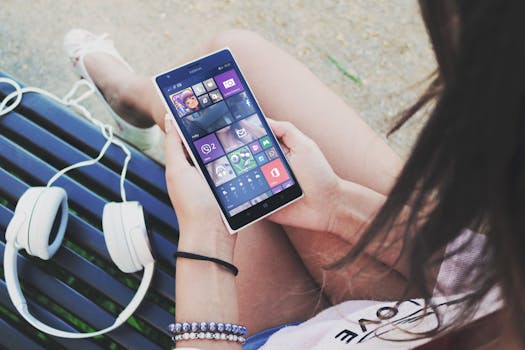
Downloading and sharing files via torrents has long been popular on desktops and, more recently, on Android and iOS. But what about torrenting on Windows Phone? While Microsoft’s mobile platform is no longer actively developed, millions of devices are still in use worldwide. If you’re a Windows Phone user wondering how to safely and efficiently use torrent clients, you’re not alone. This guide explores your available options, technical limitations, and step-by-step methods for managing torrents on Windows Phone in 2024.
The Challenge of Torrenting on Windows Phone
Windows Phone, launched in 2010, once aimed to compete with Android and iOS. However, Microsoft ended support for Windows 10 Mobile in December 2019. As of 2023, StatCounter estimates Windows Phone’s global market share at just 0.01%, but that still translates to thousands of active devices.
The main hurdles for torrenting on Windows Phone include:
- Lack of official torrent apps in the Microsoft Store - Outdated app support and missing security updates - Limited background process capabilities - Compatibility issues with modern torrent protocolsUnlike Android, where you can choose from dozens of robust torrent clients, Windows Phone users have a much smaller selection, often relying on third-party solutions or creative workarounds. This guide examines these methods in detail.
.png)
Available Torrent Clients for Windows Phone: What Are Your Options?
Although the Microsoft Store no longer features mainstream torrent apps, a handful of third-party options once existed. Here’s a look at the most prominent torrent clients historically available for Windows Phone and their current status:
| App Name | Status in 2024 | Key Features | Supported Protocols |
|---|---|---|---|
| WP Torrents | No longer supported | Download/upload torrents, magnet links, streaming | Bittorrent, Magnet |
| Torrent RT | Some legacy availability | Remote torrent management, download to device | Bittorrent, Magnet, DHT |
| uTorrent Remote | Works as remote control only | Manage PC torrents from phone | Remote management |
| Transmission Remote | Active for remote use | Control Transmission client on other devices | Remote management |
| Custom Workarounds | Possible via browser/cloud | Web-based torrent control, seedbox access | Varies |
As of 2024, direct torrent downloading on Windows Phone is extremely limited. Most native apps no longer receive updates or have been removed entirely. However, remote management and web-based workarounds still offer viable alternatives.
Setting Up Remote Torrent Management on Windows Phone
Due to the absence of up-to-date native torrent apps, remote management is the most practical method for torrenting on Windows Phone. This approach lets you control torrent downloads on your home PC or server using your phone.
Step-by-step remote torrenting:
1. Install a torrent client on your desktop, such as uTorrent, qBittorrent, or Transmission, with remote management enabled. 2. Set up remote access credentials (username, password, and port). 3. On your Windows Phone, download a remote control app like “uTorrent Remote” or use your browser to access the web interface (e.g., http://your-ip-address:8080). 4. Log in and manage torrents: add magnet links, start/stop downloads, and monitor progress.Example: If you run qBittorrent on your PC, you can access its web UI from your Windows Phone’s browser and control all downloads remotely. This is efficient, secure, and bypasses the limitations of the Windows Phone platform.
Tip: For added privacy, use a VPN on your home network or enable HTTPS for remote web interfaces to protect credentials and traffic. In 2023, about 31% of torrent users worldwide report using a VPN for privacy according to Statista.
Using Seedboxes and Cloud Torrent Services
Seedboxes and cloud torrenting sites have exploded in popularity, especially for users on restricted platforms like Windows Phone. These services handle torrent downloads for you, storing files in the cloud for later download via HTTP, FTP, or WebDAV.
How it works:
- Sign up for a seedbox or cloud torrent service (examples: Seedr, ZbigZ, Put.io). - Paste your torrent or magnet link into their web interface (accessible on your phone’s browser). - The service downloads the torrent on its servers. - Once ready, you download files to your phone as a regular file transfer.Advantages for Windows Phone users include:
- No need for a native torrent app - Faster speeds (seedboxes often have gigabit connections) - Enhanced privacy (IP address never exposed to the torrent swarm) - Bypasses ISP or app store restrictionsStat: As of 2024, Seedr reports over 2 million active users worldwide, reflecting the ongoing demand for cloud-based torrenting.
Example workflow:
1. Open Internet Explorer or Edge on your Windows Phone. 2. Log in to your Seedr account. 3. Add a torrent or magnet link. 4. Wait for the download to complete in the cloud. 5. Download the finished files to your phone via HTTP.Web-Based Torrenting: Using Browser Solutions on Windows Phone
If you want to avoid seedboxes but still can’t install torrent clients, web-based torrent services offer another workaround. These platforms provide a simple interface where you can manage and download torrents directly from your browser.
Popular web torrent solutions:
- Filestream: Offers free and paid plans, supports magnet links. - Bitport: Allows torrent-to-cloud and cloud-to-device downloads. - Offcloud: Integrates with multiple cloud storage providers.While some of these services have file size or speed limits for free users, they remain a practical solution for Windows Phone users who cannot install or trust third-party apps.
How to use:
1. Open your browser and navigate to the web torrent service. 2. Paste the magnet or torrent link. 3. Wait for the server to complete the download. 4. Download the file directly to your device or sync it to your cloud storage (e.g., OneDrive, Dropbox).Keep in mind: Download speeds to your phone will depend on your Wi-Fi or mobile data connection. Wi-Fi is generally recommended for faster and more stable transfers.
Security, Risks, and Best Practices for Torrenting on Windows Phone
While torrenting on Windows Phone is possible, it comes with security and privacy challenges. Here’s what you should know:
- Outdated OS: Microsoft no longer issues security updates for Windows Phone, exposing users to unpatched vulnerabilities. - Lack of VPN apps: Unlike Android or iOS, VPN support is minimal or non-existent, making it harder to hide your IP address. - Reliance on third-party services: Using untrusted cloud or web torrent services might compromise your privacy or files.Best practices:
- Always use reputable cloud torrent or seedbox providers with HTTPS support. - Avoid downloading copyrighted material or illegal content. - Regularly scan files for malware using a desktop antivirus before transferring them to your phone. - If possible, restrict all downloads to your home Wi-Fi network to minimize interception risks.Fact: According to a 2022 McAfee report, nearly 18% of mobile malware infections originated from file downloads on unsupported or outdated operating systems.
Final Thoughts on Torrenting with Windows Phone in 2024
While Windows Phone has faded from the mainstream, users still have options for torrent management and downloads. The key is to adapt to the platform’s limitations by using remote management tools, seedboxes, or web-based torrenting solutions. Although the experience may not match that of modern Android or iOS devices, you can still access and manage torrents with a bit of creativity and caution.
As with all torrenting, prioritize security and privacy, especially given Windows Phone’s lack of ongoing support. For larger files or frequent downloading, consider using a desktop or seedbox as your primary torrent tool, with your Windows Phone as a remote controller or download endpoint.